

COACHINT: simple manual
For athletes and coaches who use the app. Short steps, one thing at a time.
COACHINT looks at your own training. It learns what is normal for you. Then it tells you, in plain words, what changed this week.
You don't install anything to use it. You open a link, like a web page.
1. What you need
- A phone or a computer with a web browser.
- The link to COACHINT. COACHINT sends it to you.
- A way to sign in. One of these:
- a user name and a password you make yourself on the sign-in page, or
- a user name and a password from COACHINT, or
- your Google account, if the sign-in page shows the Google button.
- Your training data. Section 4 shows how to bring it in.
Keep your password secret, like a house key.
2. Sign in the first time
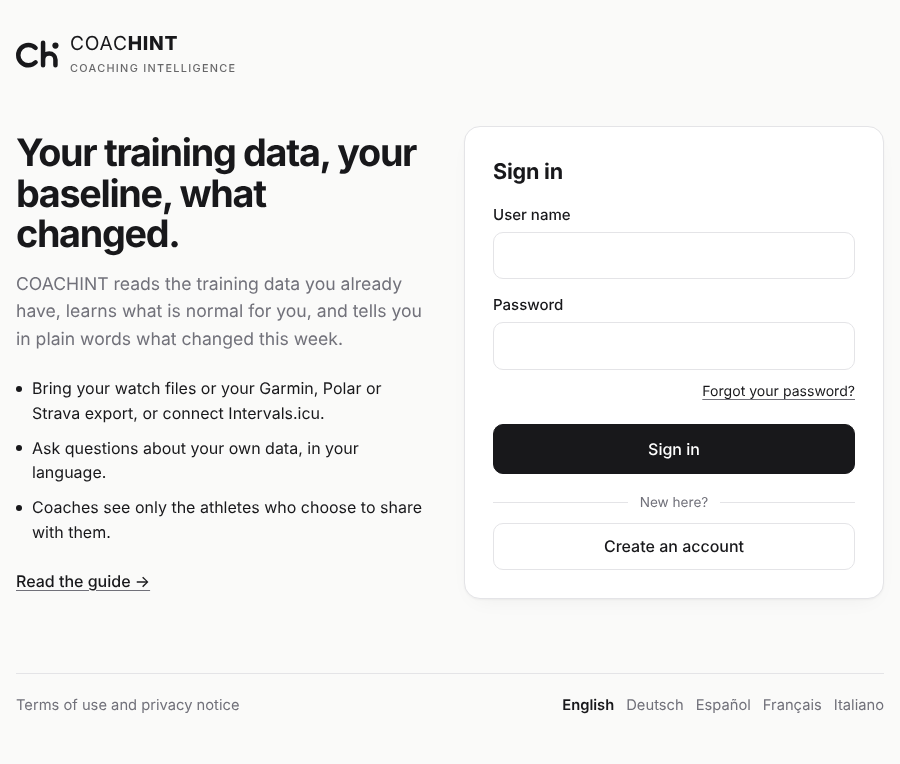
- Open the link.
- Sign in:
- New here: press Create an account under the sign-in box. Pick a user name and a password (type it twice). Under Who can find you, keep Private or choose Discoverable so people can find your card (name, roles, sport, place) on the People page; you can change it there any time. If you coach other athletes, tick I coach other athletes: the admin then makes you a coach. Then press Continue to the terms. If there is an Email (optional) box, you can give your email: open the link COACHINT sends you to confirm it. After the terms you may see Waiting for approval: the admin still has to let you in. Sign in again later.
- With a password: under Sign in, type your user name (your first name in small letters, like
marco) and your password. - With Google: press Sign in with Google and pick your account.
- The first time, you see the terms of use. They say what is kept about you and who sees it. Read them.
- Tick the two boxes. Then press I accept.
- Your page opens.
Home: at the top left you see your picture and your name. Press it to go back to your home from anywhere: your own page, or My athletes for a coach who keeps no training of their own. COACHINT opens there every time you sign in, unless you opened a link to a page.
The first time, a short tour starts on its own: one part of the page lights up at a time. Press Next to go on, or Skip the tour. To see the whole page explained later, open the Menu and press How to read this. When a week has no data yet, the four numbers say Nothing yet this week.
Every window that opens from the Menu closes with ✕, the Esc key or a tap outside it. If you typed something there and did not save it, COACHINT asks first.
If the password does not work, check the user name first. Still stuck? Ask COACHINT for a new password.
3. Put COACHINT on your phone
COACHINT can sit on your phone's home screen, like an app. It is the same page, so nothing changes inside.
On Android (Chrome):
- Open the link and sign in.
- Open the Menu.
- Press Install app. Then confirm.
No Install app button? Use the browser's ⋮ menu and choose Install app or Add to Home screen.
On iPhone or iPad (Safari):
- Open the link in Safari and sign in.
- Press Share (the square with an arrow).
- Press Add to Home Screen, then Add.
Now open COACHINT from its black and white icon.
4. Bring in your training
COACHINT needs your training to tell you anything. A new page says No data until something arrives. Its first button, Connect Intervals.icu, opens the Intervals.icu part of Import data.
Pick the way that fits your watch. If you are not sure, ask COACHINT.
| Your watch or app | What to do |
|---|---|
| Garmin | Ask Garmin for your data (below), then send it once. For daily updates, connect Garmin to Intervals.icu. |
| Polar | COACHINT sends you a Polar link. Accept it once, and your data comes every day. |
| Strava | Ask Strava for your archive (below) and send it. |
| COROS or Suunto | Ask for your data export (below) and import it. For daily updates, connect the watch to Intervals.icu. |
| Intervals.icu | Connect it yourself (below). New data comes every few minutes. |
| Any other app | Save an activity as a FIT, TCX or GPX file and import it yourself (below). |
Import files yourself:
- Open the Menu.
- Press Import.
- Press Choose files, or drag the files onto the dashed box.
- Wait for the message that says what was added.
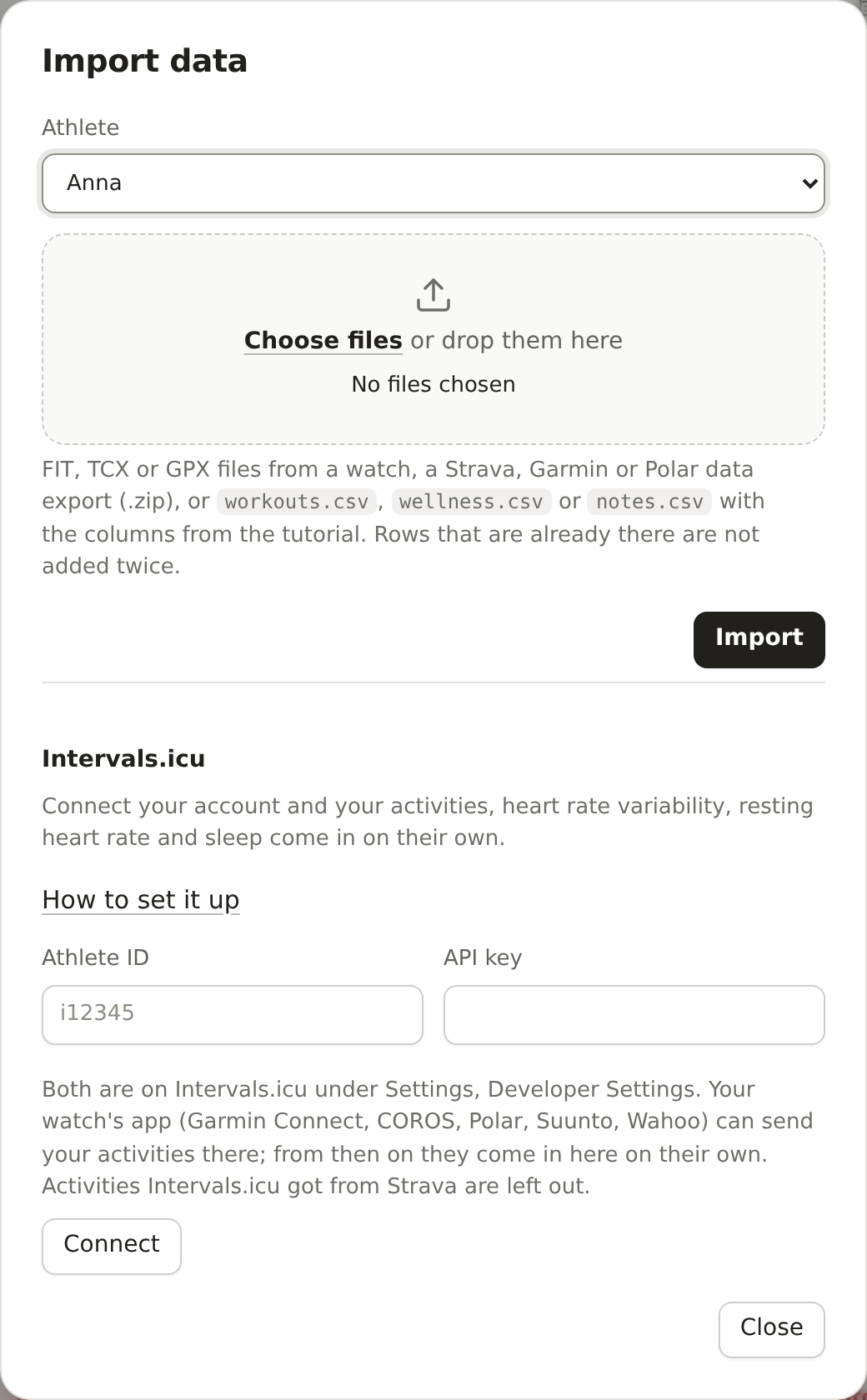
Each file must be smaller than 20 MB. The same workout is never counted twice, wherever it comes from (for example your Garmin export and Intervals.icu).
Import a big export from its link:
- Copy the download link from the email Garmin, Strava or Polar sent you. A Dropbox link works too.
- Open the Menu and press Import.
- Paste the link in Or paste the export's download link.
- Press Import. The server downloads the file itself. Wait for the message that says what was added: it can take several minutes.
If the message says the link opened a web page, the link needs you to be signed in. Download the file, put it in Dropbox and paste that link, or send it to COACHINT.
Connect Intervals.icu:
- On intervals.icu, open Settings, then Developer Settings. Copy your athlete ID (it looks like i12345) and make an API key.
- In COACHINT, open the Menu and press Import.
- Under Intervals.icu, fill in Athlete ID and API key.
- Press Connect. Wait for the message that says what was imported.
Not sure? Press How to set it up under Intervals.icu: it shows each step on the screen.
New data then comes every few minutes. Sync now brings it at once. Disconnect stops it.
Activities that reach Intervals.icu from Strava can't come here: Strava doesn't let Intervals.icu pass them on. Connect your watch's app (Garmin Connect, COROS, Polar, Suunto or Wahoo) to Intervals.icu itself, and import older ones from your data export.
Start times are the time where you trained, the same as in Intervals.icu.
Ask Garmin for your data: on garmin.com, open your account, then Data Management, Export Your Data, Request Data Export. Garmin emails you a link to a .zip file. It can take a few hours.
Ask Strava for your archive: on strava.com, open Settings, My Account, Download or Delete Your Account, Request your archive. Strava emails you a .zip file.
Ask COROS or Suunto for your data: on a computer, open COROS Training Hub, then Activity List, Export Data, and choose FIT. In the Suunto app, look for the data export in your account settings. Both email you the files or a link: import the files, or paste the link in Import.
Then paste the link from the email in Import (see above). Never send your .zip in a group chat.
At first your page says Learning. COACHINT needs about 5 weeks of training to know what is normal for you. An older export fills that gap at once.
See all your workouts: in Activities this week, press All activities. The newest are at the top. To see only some, press one or more sports, or pick the days under From and To. Reset filters shows them all again. Scroll down, or press Show more, to see older ones. To keep a copy, or give it to your coach or an AI, press Spreadsheet (CSV) or For AI tools (JSON): you get the workouts you are looking at, with the same sports and days.
5. Add a workout by hand
Did you train without your watch? Add the workout yourself.
- Open Activities this week.
- Press Add activity.
- Pick the sport: Run, Trail run, Walk, Hike, Swim, Ride, Strength, HIIT or Other.
- Fill in the day, the start time and how long it lasted.
- Fill in what the form asks for that sport, like the distance. You can also add the Equipment you used, the Weather and the Workout your coach gave you. Press Enter for a new line.
- Pick how hard it felt in Effort (RPE 1–10): 1 is very easy, 10 is all out. You can type your heart rate too.
- Press Add activity.
Set your usual equipment: open Menu, Account and type it under Default equipment, one box per sport. A new activity of that sport starts with it.
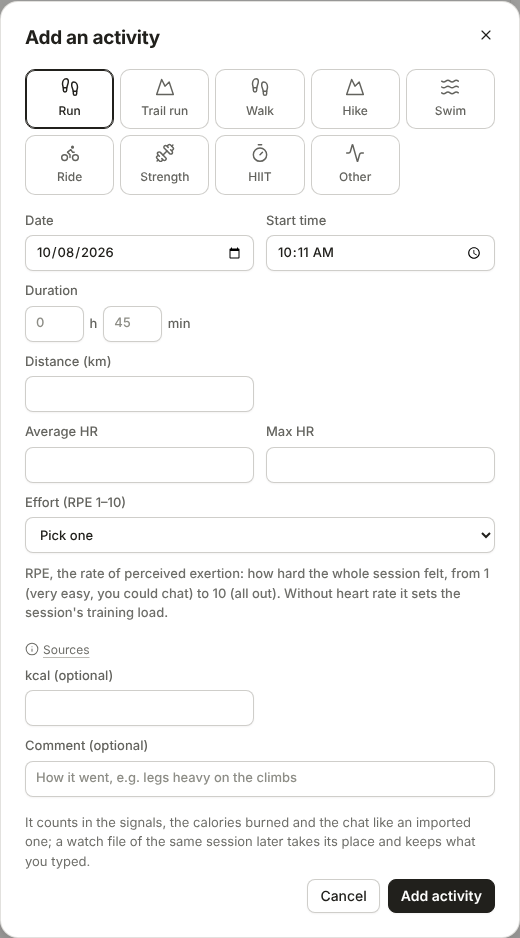
The workout now counts like one from a watch. Its row says added by hand. Press ⋯ at the end of its row, then Edit to change it or Remove this activity to take it away (the same buttons are under Details).
If a watch file of the same workout comes later, it takes the place of what you typed and keeps your effort and comment.
6. Fix a workout
Sometimes a watch gets it wrong. For example, it kept running in the car.
- Open Activities this week.
- Press Details under the workout.
- Press Edit.
- Change the numbers that are wrong.
- Press Save changes.
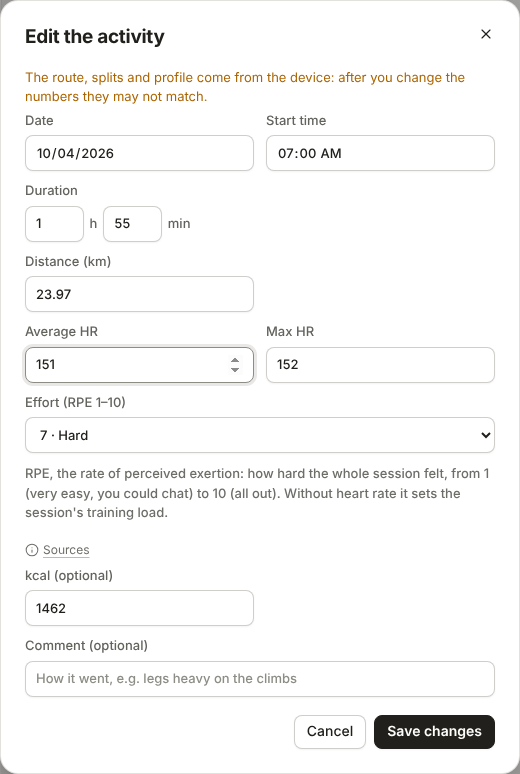
The row now says edited by hand. The route still comes from the watch, so a small warning says it may not match your numbers. Undo my edits brings the watch's numbers back.
If you only add a comment, the activity keeps the watch's numbers and says comment added by you instead.
Press Details under a workout to read its comment under How it went, without opening Edit. Your coach reads it there too; only you change it.
To say how hard a workout felt:
- Press Details under the workout.
- Under How hard did it feel?, press a number from 1 (very easy) to 10 (all out).
Your coach sees it, and so do the people your activities are shared with.
For a run, Details also shows your average cadence in steps per minute, when your watch or Intervals.icu recorded it. Other sports show none.
A workout that should not count at all, like one the watch recorded twice:
- Press Details under the workout.
- Press Remove this activity, then OK.
It moves to Removed by you at the bottom of the tile and stops counting. A new sync does not bring it back. Bring back puts it back.
7. Add your races
Tell COACHINT which races you are training for. The next one shows as a countdown at the top of your page. Lighter training just before and after a race is expected: COACHINT shows Taper or Recovering from a race then, not Load down.
- Open the Races and events tile. If you don't see it, open Menu, Account and tick it under Tiles on the page.
- Type part of a race's name, like Florence Marathon, and press Search.
- Press Use next to the right race. The form fills itself in.
- Check the date. Pick how much the race matters: A is the big goal of the season, B is important, C is a training race.
- Press Add event.
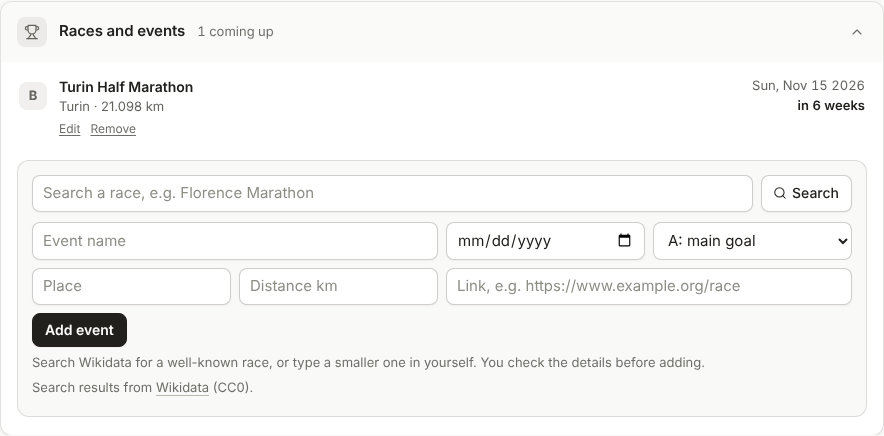
A small local race may not be found. Then type its name and date yourself, and press Add event. ⋯ next to a race has Edit and Remove to change or take it away.
8. Read your page
Your page shows one week: when you open it, the week up to today, even if nothing is recorded in it yet. Look at it from top to bottom.
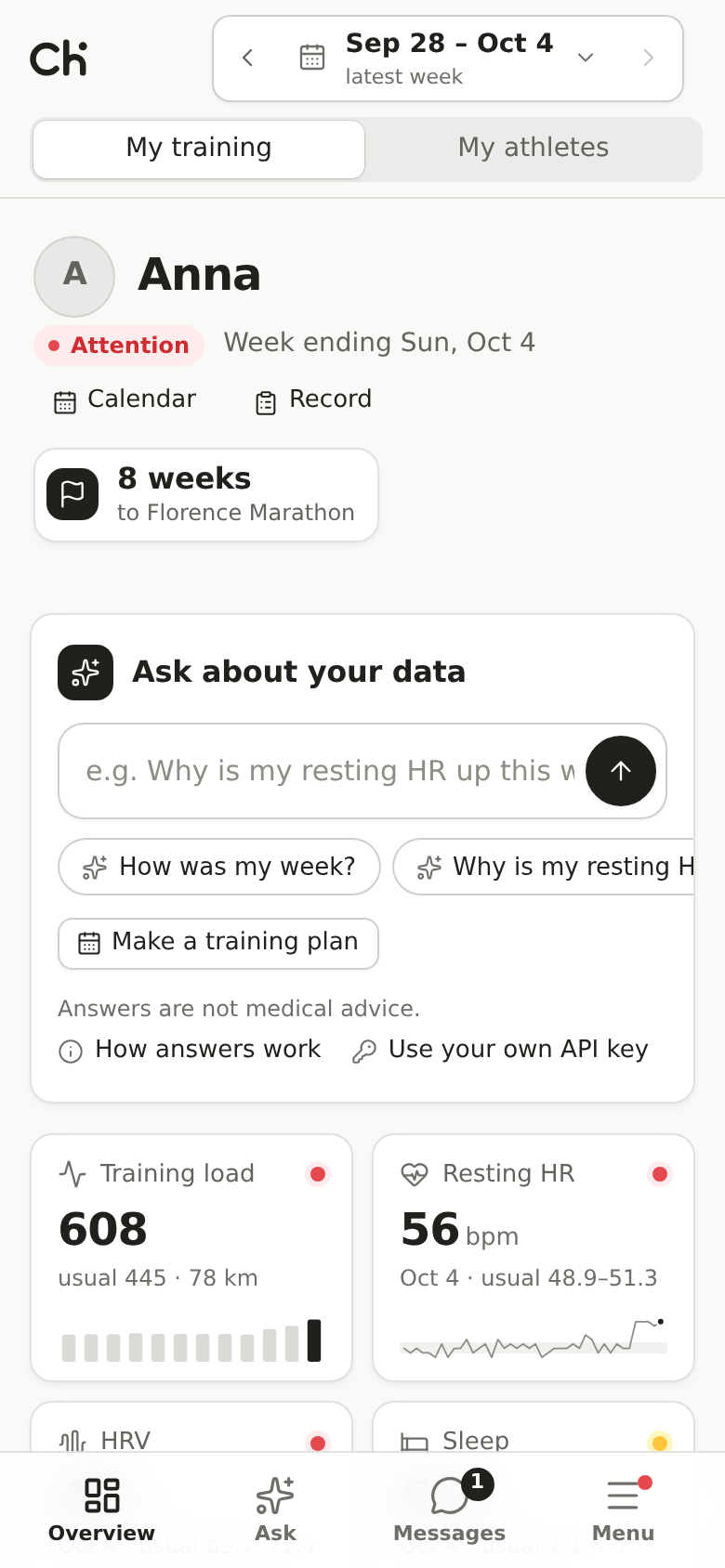
- The card on top: your name, a label, the week in one sentence, your next race, and the buttons Calendar, Bio, Training plans (and Status report). The label tells you how the week looks:
- Stable: nothing unusual.
- Monitor: something is worth a look.
- Attention: something needs a closer look.
- Today: what your plan has for today and whether yesterday's session was done, your last session (press Rate it to say how hard it felt) and the newest from your Feed (See all opens it).
- Ask about your data: the chat (section 9). On a phone it comes after the numbers; Ask in the bar at the bottom jumps to it.
- Four numbers: Training load, Resting HR, HRV and Sleep. Each one shows this week and your usual range. Press a number to see its chart. Once you rate your workouts, Effort (RPE) shows how hard this week felt on average, next to your usual. It also says how many of this week's workouts are not rated. Press it, then press a workout under Not rated yet this week: it opens with the numbers from 1 to 10 ready. Once you press one, the workout leaves the list.
- This week: the signals. Each one says what happened, compared with what. For example: "Load this week is +35% vs your usual." The first four show; press N more to see the rest.
One line under your name sums the week up. If nothing was recorded this week, it says since when, with Import. 6. More boxes, called tiles: Load and recovery, Activities this week, Races and events, Notes, Food and calories, Digest as sent and Past digests. Press a tile's title to open or close it. Expand all and Collapse all, above the tiles, open or close them all. To put the tiles in your own order, press Arrange, drag one by the dots at the left of its title (or select the dots and use the arrow keys); press Done when finished. Usual order puts them back. Races and events and Past digests start hidden: show them, or hide others, in Menu, Account, Tiles on the page.
Colours always mean the same thing:
| You see | It means |
|---|---|
| Red triangle | Watch: look closely. |
| Yellow eye | Keep an eye on: worth a look. |
| Green tick | Going well. |
Everything else is black, white and grey.
Look at another week:
- Press ← or → in the top bar to go back or forward one week.
- Press the week itself to pick one from a calendar.
- Press Latest to come back to this week.
See a workout's route: open Activities this week and press Route & splits under a workout. You see the route, your pace over the distance and each kilometre. Workouts from a watch file have a route; typed ones don't.
See all your activities and races on a calendar: press Calendar under your name (on a phone, also in the bar at the bottom). It shows a month; Week shows one week. On a phone, tap a day to list what is on it; ← and → move it. Press an activity to open its details, or a race to see it. Press a day to add an activity or a race on it: the date is already filled in.
COACHINT compares you only with yourself. It is not a doctor. If pain or illness goes on, see a doctor or a physiotherapist.
After an update. A banner at the top says What's new:
- Press Read to see what changed.
- Press Got it, or the ×, to close it. It comes back only after the next update.
- To read the notes again, open Menu and press What's new.
9. Ask a question
The chat is right under your name.
- Press one of the suggested questions, or type your own. For example: "How did I sleep this week?" or "What should I do next week?"
- Press Ask.
- Read the answer.
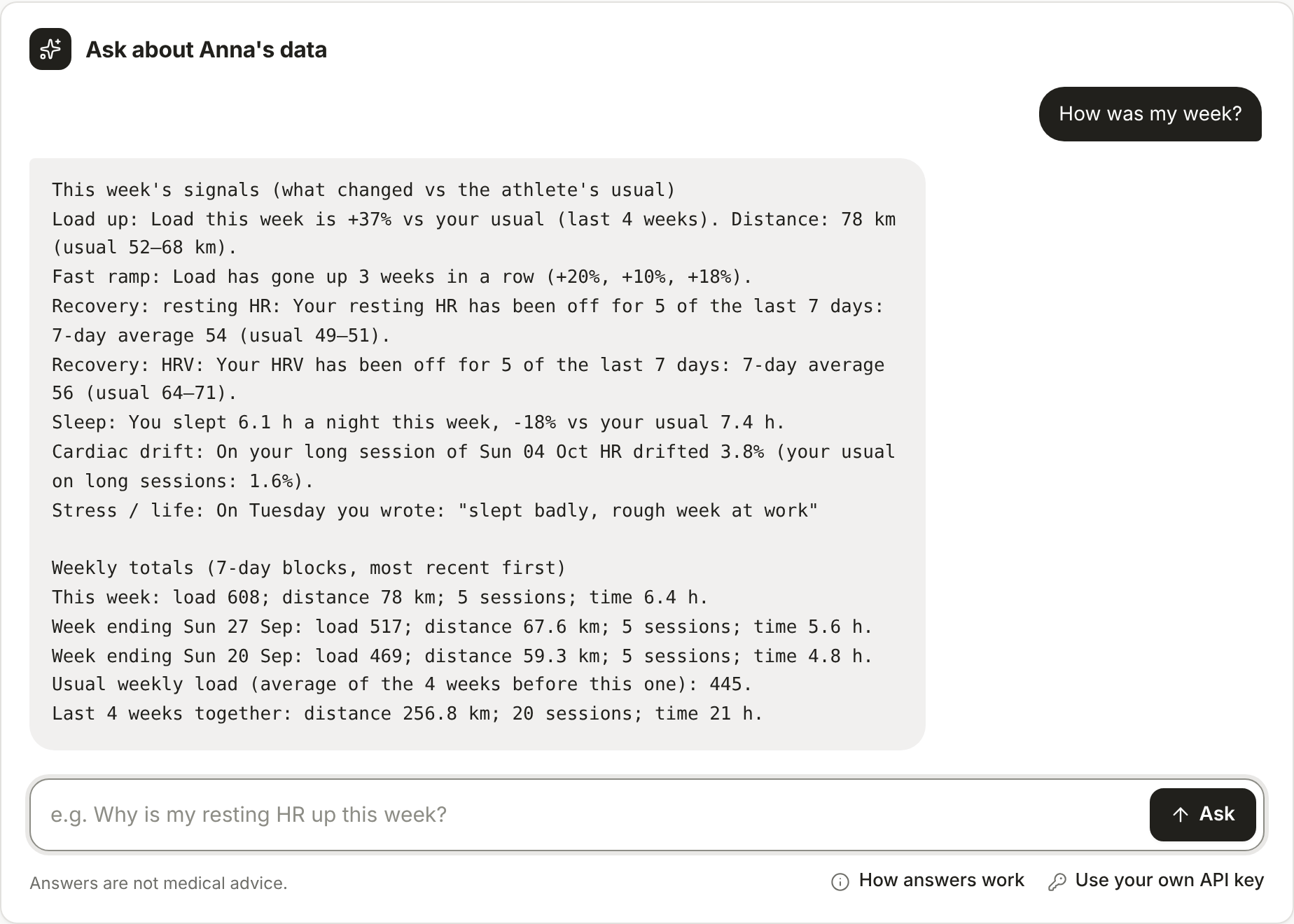
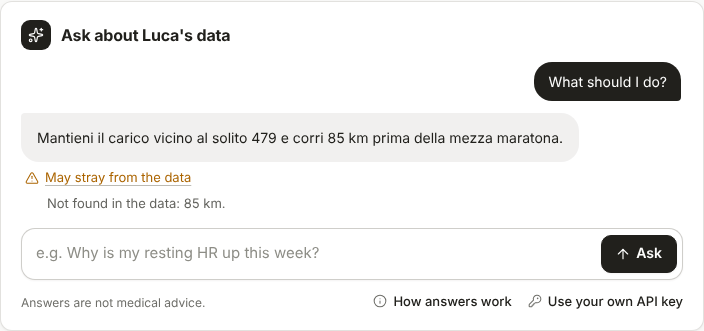
You can ask in any language. The answer comes in the language you ask in. Only a very short question, like one word, gets the language you picked in the menu. The answer uses your data, up to the week you are looking at. You can ask for advice, not only for numbers: what to do in the coming days, whether to rest, how to get ready for a race. COACHINT checks every number in the answer against your data. If a number is not in your data, an amber line says May stray from the data. Press it to see which numbers, and check them before you trust the answer. The answers are not medical advice. Before you have any data, the suggested questions are general training ones, and the answers are general advice with no numbers to check.
If you ask how a session went, the answer compares it only with earlier sessions like it: the same sport, a similar distance, similar climbing and the same kind of session (easy, intervals, race). It says why they match, and says so when there are few or none.
Some answers end with Sources: scientific papers or pages that back the advice. A number in brackets, like [1], in the answer points to the source with the same number. Press a title to open it. Further reading lists more papers on the same topic.
Use your own API key (optional). If you have a key from Anthropic or OpenAI, the answers come from your own account and have no hourly limit:
- Press Chat settings under the chat, then Use your own API key.
- Pick Anthropic or OpenAI.
- Paste your key. Press Save key. If the key is wrong, the box says so and nothing is saved.
Get a key. The key comes from the company that runs the model, not from COACHINT:
- Anthropic (Claude): go to console.anthropic.com, sign in, open Settings, then API Keys, and press Create Key. Add a little credit under Billing.
- OpenAI (GPT): go to platform.openai.com, sign in, open API keys, and press Create new secret key. Add a little credit under Billing.
A Claude or ChatGPT subscription doesn't include this: the key is billed separately, for the questions you ask.
Without a key, the chat still works, with up to 30 questions an hour and a number of questions a day (usually 10 for an athlete and 20 for a coach). When they run out, the chat says so: try again the next day, or add your own key.
Make a training plan. COACHINT can draft your next 1 to 12 weeks from your own data:
- Press Make a training plan under the chat (or Training plan in the calendar).
- Pick the Start day and how many weeks. If you like, write what you want, for example "4 sessions a week, a long run on Sunday".
- Press Make a draft. If you ask for a rest day, the draft keeps one in every week.
- Change anything you like: the day, the sport, the minutes, the kilometres, the intervals, the notes. The bin removes a session; Add session adds one. To move a session, change its date, or drag it by its handle: it takes the day of the session below it. Undo takes back the last change. On a phone each session is one line: tap it to open its fields, tap it again to close them.
- Press Save to calendar. The planned sessions show in the calendar with a dashed border. They don't count as training until you do them.
When the chat suggests sessions, it lists them under its answer, one per line, in the answer's language.
If the chat already suggested sessions, Make a training plan starts from them. You can also press Use this plan under that answer.
Ready-made workouts: in the plan, press Insert workout and pick the Day to see sessions tested in sports science and sessions that coaches of Olympic and professional athletes use. Pick a sport, then press Add to plan on the one you want. Change it like any other session.
Exercises and workout types: each session has a Type: endurance, intervals, resistance, power, mobility or balance. Press Add exercise to list what to do. Give each one its sets, reps or seconds, kg and rest. To narrow the standard workouts, pick a sport or a type above the list.
Track your lifts: when you add a strength or HIIT activity, fill in its exercises. Open the activity later: Last time shows what you did before, and an arrow marks where you did more.
Your own workouts: press the notebook button on a session to save it under My workouts. Next time, add it to a plan from there. To share one, pick who sees it next to it: your coaches, your connections or everyone. Workouts others share with you are under Shared with you: press Add to plan, or Copy to my workouts to change your own copy.
Your training plans: press Training plans at the top of your page, next to Calendar and Bio. It lists every plan: the ones you made and the ones your coaches sent, past ones too. Each one says who made it, how (from the chat, a draft, typed in, or duplicated from another plan) and its days.
- Open shows a plan. Open and change opens one of yours to change and save again.
- Use again copies one of your plans to new days, from tomorrow on the same weekdays.
- Remove takes a plan out of the list. Its sessions still to do leave the calendar.
A plan from your coach: it shows at the top of your page and in Training plans. You can't change it, but you can:
- Press Accept to put it in your calendar as it is.
- Or press Decline to delete it.
- Or press Duplicate as my plan. You get your own copy to change, then press Save to calendar. The copy says which plan it came from.
If your coach sends a new version of a plan you accepted, it waits for you like a new plan. Your calendar only changes when you accept it.
See if you followed it: in the calendar, a planned session you did has a tick; one you missed is crossed out. Under the calendar, Plan followed says how many sessions you did. Press a planned session to see which activity did it. If it picked the wrong one, choose another under Done by, or Not done.
Move a planned session: drag it onto another day in the calendar. Or press it, then pick a new day under Move to. Only sessions from today on move. To put it back, press Undo, or Ctrl+Z (Cmd+Z on a Mac).
A plan from your coach: when your coach sends you a plan, it shows at the top of your page. Press Open the plan, change anything you like, then press Save to calendar. Or press Decline, and nothing goes in your calendar.
To put the plan on your watch:
- Garmin: press Garmin workouts (.zip) and unzip it. Connect the watch to a computer with its cable. Copy the .fit files into the GARMIN/NewFiles folder on the watch. Unplug it: the sessions are under Training > Workouts.
- Polar: Polar watches don't take files of planned workouts. Press Calendar file (.ics) to put the plan in your phone's calendar, and set the sessions up as training targets in Polar Flow.
A plan is a suggestion from your data, not medical advice.
10. Write a note
A note says how you feel. COACHINT reads it. A note like "knee sore since km 8" becomes a signal.
- Open the Notes tile.
- Type your note.
- Pick the day.
- Press Add note.
The note shows up in your signals and in your daily message.
To change a note, press ⋯ next to it, then Edit, change the words and press Save. Remove, in the same menu, takes it away. A note that is the comment of a workout has Open the activity instead: change it there.
The newest notes come first. Scroll inside the tile to see older ones; Show more adds the next ones.
11. Log what you eat (optional)
The Food and calories tile puts what you ate next to what your workouts burned.
- Open Food and calories.
- Type the food, the amount and the calories (kcal).
- Press Add food.
Shortcuts:
- Barcode: type the numbers under the barcode in Barcode digits and press Look up. On an Android phone, Scan a barcode reads it from a photo.
- Label: press Scan a label and take a sharp photo of the nutrition table. The form fills itself in.
Always check the numbers before you press Add food. Set Your weight (kg) to make the burned calories closer to yours.
Got something wrong? Press ⋯ next to the food, then Edit, fix it in the form and press Save changes. Remove, in the same menu, takes it away.
12. Your daily message
Every morning you can get a short message about your training, called the digest, on Telegram or by email. Tell COACHINT which one you want.
- Under each alert there are two buttons: Useful and Dismiss. Press one. It helps COACHINT learn what matters to you. Your page shows the same choice, wherever you pressed it.
- Every message is also on your page, in Past digests. Press Open this week to see that week. If you don't see it, tick it in Menu, Account, Tiles on the page.
- Delete this digest takes one out of that list. The Telegram or email message stays where it is.
13. Share with a coach or a group
Nobody sees your data unless you say yes. You decide on your Sharing page.
- Open the Menu.
- Press Sharing.
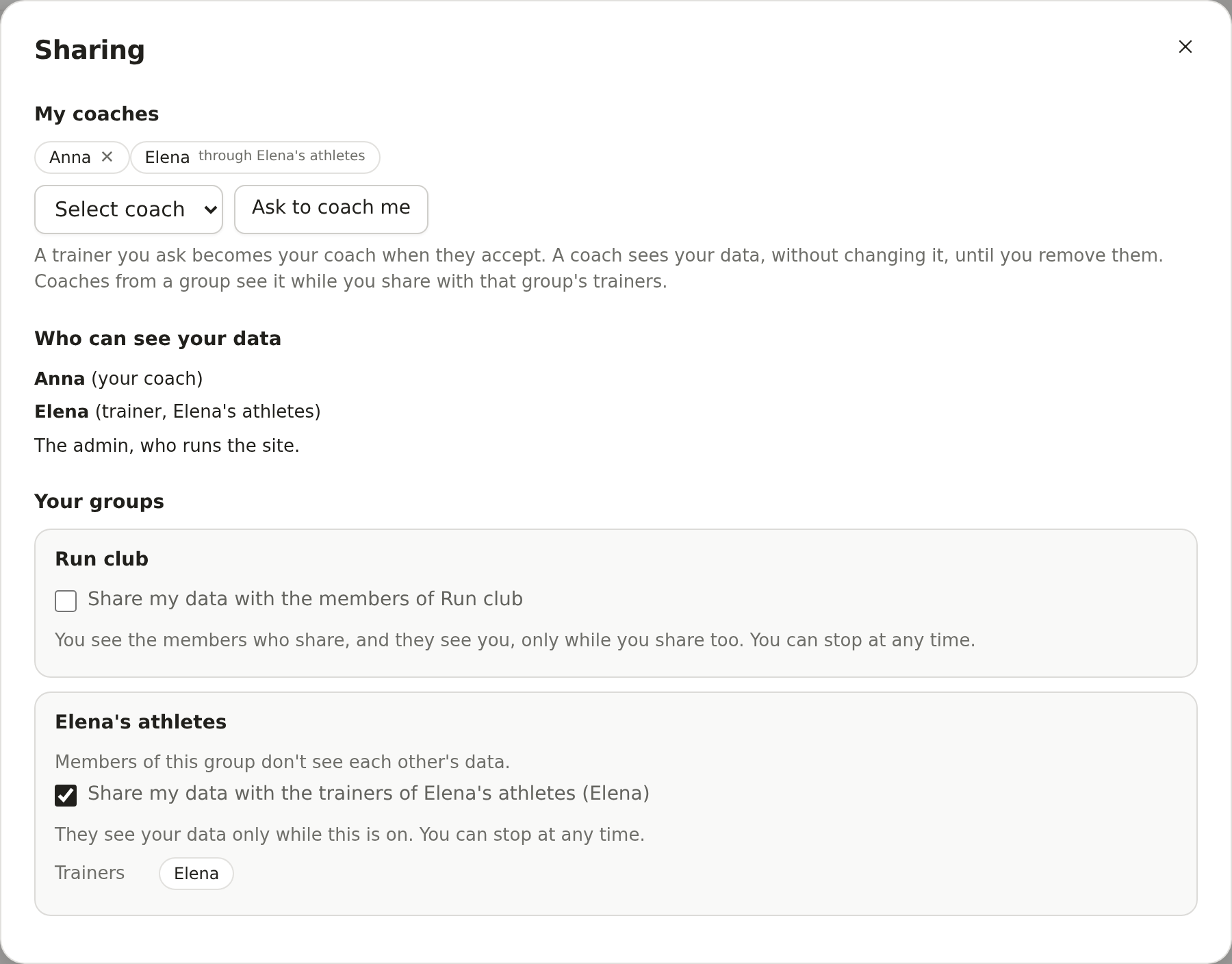
Ask a coach:
- Under My coaches, choose a name in Select coach.
- Press Ask to coach me.
When the coach accepts, they can see your data. They cannot change it. Press ✕ next to their name to stop sharing with them, or to take back a request they have not answered.
Find people and connect:
- Open the Menu and press People.
- Type a name, a sport or a place and press Search. You find only people who chose to be found.
- Press Connect, Ask to coach me, Offer to coach or Invite to group next to a person. To say hello, first write a short note in Add a note (optional).
- They see your request, and your note, under Waiting for you. They can write an answer in Answer with a note (optional), then press Accept or Decline.
When they accept, you are connected: you find them under Your connections and can write to each other in Messages, where your two notes are the first messages. Being connected shares no training data. Accepting a coach connects you too, and stopping coaching keeps the connection. Disconnect under Your connections ends it. If they decline, you are told, and you can send the same request again after 30 days. Press a name or a picture to see that person's Bio.
To be found yourself, fill in Your profile, tick Discoverable and press Save profile. For Nationality, type a few letters and pick your country from the list. Others see your name, sport, place, country with its flag and one line about you, never your training. Suggestions shows people from your groups, your sport or your place. To start a group, type its name and press Make group. Then, under the group in Your groups, pick one of your connections and press Invite, or invite people from search and suggestions. Only people who keep their training on COACHINT can join.
Run a group: if you made a group, or its creator made you an administrator, open Group settings under it. Change its name or description and press Save. Tick Members can write in the group conversation to let everyone write; untick it and only administrators and coaches write. Next to each person: Make administrator (only the creator), Make coach for a member who coaches, Remove from group.
Leave a group: press Leave and confirm. If you made the group and others are in it, pick who runs it next and press Leave the group.
Share with a group: if you are in a group, its switches are on the same page. Turn a switch on to share with the group's coaches, or with the other members. Members see each other only when both say yes.
Write a message:
- Press Messages at the top of the page. On a phone it is in the bar at the bottom.
- Press a conversation, or pick a person under the list and press New message.
- Type and press Send.
Each of your groups has its own conversation. You can write to your coaches, the athletes you coach, and the people in your groups. Only the people in a conversation read it. A number next to Messages says how many you have not read.
Keep your medical history:
- Open your page and press Status report, next to Calendar and Bio. Or open the Menu, Account, then Open the status report.
- Under Medical history or Injuries, illness and breaks, press the add button. Fill in the form and press Add.
- Each part starts as Private: only you. To share it, choose Your coaches: the app asks you to agree first. Nobody else can ever read it.
Choose Private: only you again to stop sharing at any time. Your chat reads it to answer you; your coaches' chat reads only the parts you share with them. It is not medical advice.
Your Bio card:
- Open your page and press Bio. It shows your sport, place and country, About me, your height and weight, your heart rates, your next races and your past results.
- Press Edit my profile. Under Your bio, write who you are and your goals, choose Who reads it and press Save. Under Body, write your height and weight and press Save weight and height. You find the same in the Menu, under Account. Your sport, place and country are on the People page.
- Press Edit past results, then Add a result. Fill in the form and press Add. Choose who reads them: Private: only you, Your coaches, Connections and group members or Everyone on COACHINT.
Your height and weight show only to the people who see your whole page: your coaches, and the members of groups where you both share. Your activities are not on your Bio card: they are in the Feed. Only you change your Bio.
Show your activities and races to others:
- Open the Menu and press People.
- Under Who sees what you do, choose who sees Your activities, who may open them under Your activities opened, and who sees Your races and events: Private: only you, Your coaches, Connections and group members or Everyone on COACHINT. Connections and group members means the people you connected with and everyone in any group you are in, also a coach's group whose members don't share with each other.
- To see what your contacts share, open your page: the Feed tile is the last one. It shows Activities first, newest on top, then Races, the next one first. To hide it, untick Feed: what your contacts share under Tiles on the page, in Account.
Everything starts private. Others see the date, sport, time and distance of an activity, never your heart rate, notes or route. If you let them open your activities too, they press one in the Feed to see its route (without where it starts and ends), splits and profile, still never your heart rate or notes. Everyone on COACHINT means people who are signed in and find your profile, so tick Discoverable too. Press a name in the Feed, or Bio on the People page, to open that person's Bio card: who they are, what they wrote about themselves, their next races and the past results they share with you. On the page of an athlete you coach, Bio also shows their height, weight and heart rates. Under each item, press Clap to show appreciation, or Comment to read the comments and write one. You can remove your own comments, and any comment on what you share.
Add a friend's race to your calendar:
- In the Feed, press Add to my calendar under the race.
- Your Calendar opens on that day with the race filled in. Change what you need and choose its priority.
- Press Add event.
Only the race's name, date, place, distance and link are copied. If you already have a race on that day, COACHINT asks before adding another one.
Coach comments: your coach can comment on any of your workouts. Press Details under the workout to read it under Coach comments, write your answer and press Send. Only you and that coach read it: not your other coaches, not your groups. To see them all, open the Menu and press Coach comments. Press Remove beside a comment to remove it. Comments never change the workout. They stay when the coaching ends, until someone removes them.
Notifications, report and block:
- Open the Menu and press Notifications to see who clapped for or commented on what you share, or asked to connect. A number next to it says how many are new, and a bell with the same number shows at the top of the page until you open them. You are also told when someone joins a group where you share your training, or starts sharing there, because from then on they see your data.
- To report a comment or a message, press Report next to it. To report a person, press Report on their card on the People page. Write why if you like, and press Send report.
- To block someone, press Block on their card on the People page. They show under People you blocked, where Unblock undoes it.
Once blocked, you no longer write to each other, find each other, or see, clap for or comment on what the other shares. Blocking ends no coaching or group: remove a coach in Sharing, or leave the group. Also block them is ticked when you report. The site's admin reads only what you report. If you gave and confirmed an email address when you signed up, the notifications you have not seen yet also reach you by email after a few minutes, and so they do if you get the daily message by Telegram or email, without what a comment or message says; untick the box under Notifications to stop it.
To choose which notifications you get, open the Menu, press Account, and under Notifications untick what you do not want: new activities, new messages, or claps and comments. Requests and answers always come. The box below the switches stops the emails.
Read a coach's profile: a coach's card on People, and their Bio, have a Coach profile button. It shows what the coach offers, how they coach and their experience. Anyone signed in can read it. Under it, write a note in Add a note (optional) if you like, then press Ask to coach me or Connect. Nothing is shared until the coach accepts.
Mention people in your bio: in Account, under Your bio, type @ and the start of a name. A list shows your contacts: your coaches, the people you are connected with and the people in your groups. Pick one with the arrow keys and Enter, or press the name. Press Save. On your Bio card the name shows as a button: pressing it opens that person's Coach profile if they coach, their page if you coach them, their page or their Bio if you are in a group or connected with them, and otherwise a small card with Connect. If someone changes their name, your bio shows the new one.
14. Your account
Open the Menu, then:
- Your name: type the name others see in Display name, then press Save name. Your user name stays the same, so signing in and links keep working.
- Upload a photo: pick a photo. Drag it so your face sits in the circle, and move Zoom (or pinch with two fingers, or turn the mouse wheel). Press Confirm. Cancel keeps your picture as it was.
- Account: choose one of the twelve pictures, or Upload a photo. Your own API key is here too. Under Tiles on the page you pick which tiles your page shows. A hidden tile keeps its data. Under Data I track, untick what you don't record, like Sleep if you don't wear a watch at night: the signals, the digest, the charts and the chat stop using it, and your data stays saved. Your status report has Open the status report and Edit past results.
- Body: your weight and height. Press Save weight and height. Your weight makes the burned calories closer to yours.
- Language: English, Italian, Spanish, French or German.
- Theme: Auto, Light or Dark.
- Sign out : leave the app on this device.
15. Take your data with you, or leave
On your Sharing page, at the bottom:
- Download my data gives you a file with everything COACHINT keeps about you.
- Withdraw consent and delete my account erases your account and all your data. The page asks you to type your id to confirm. It cannot be undone.
16. For coaches
A coach sees the athletes who chose them, and the athletes in the groups they follow who said yes.
Want to coach? If you use COACHINT as an athlete, open the Menu and press Coach other athletes, then Ask to coach. The admin sees your request and makes you a coach. Until then nothing changes. Withdraw the request takes it back.
No athletes yet? Your page says so. Press Find athletes on People to find them and offer to coach them, or ask them to pick you in My coaches.
Your coach profile: a page that tells athletes what you offer. Press Coach profile at the top of the page (on a phone or a tablet: Menu, Coach profile), then Write your coach profile (later Edit). Write about your services, how you coach, your specialties, your experience and the goals you help with. The buttons above the box add a heading, bold, italic, a list or a link. Press Add a picture for up to 4 pictures, and Place in text to put one where you are writing. Press Preview to see it as others will, then Save. Everyone signed in can read it, but never your athletes, notes or training. To get requests from people you don't know yet, tick Discoverable on People.
- On the left (or under Athletes on a phone) is your list of athletes. The ones who need attention come first.
- Each of your groups shows in the list under its name, with its coaches marked Coach. Press the arrow beside a group's name to close it, and again to open it. The app remembers this for each group on this device. Your favourite group comes first: on the People page press Make favourite on a group, or tick Make it my favourite group when you make or join one.
- Under an athlete with a plan this week, Plan: 2 of 3 done says how much of it they did. Missed sessions show in red.
- Athletes' week, above the list, shows the week of all your athletes: one row each, one column per day. A tick is a planned session done, a cross one missed, a filled icon a session done without a plan. The arrows go to the week before or after; This week comes back. Press a name to open their page.
- Press an athlete to open their page. You read it like your own (section 8).
- On an athlete's page, the chat becomes the coach chat. Ask things like "How should I adjust next week?" Only you see this conversation. Start a new conversation clears it.
- Under it, Private notes is for what you want to remember about the athlete. Write it and press Save notes. Only you see it.
- To comment on one of the athlete's workouts, press Details under it, write under Coach comments and press Send. The athlete is told and can answer. Only the two of you read it. When you stop coaching them, you can still read and remove your comments in the Menu, under Coach comments, but not write new ones.
- If you also train, open the Menu and press Keep my own training. From then on the switch at the top shows My training (your own page) and My athletes.
- On an athlete's page, Make a training plan drafts a plan for them from their data. Change it, then download it (Garmin workouts (.zip) or Calendar file (.ics)) to give it to them. Or press Send to the athlete: the plan shows on their page, and they accept it or decline it. They can't change your plan; they can make their own copy of it.
- To change a plan you sent, open the athlete's Training plans, press Open and change on it, change it and press Send to the athlete again. The athlete gets it as a new version to accept.
- If you send the same plan for the same days twice, the app asks first.
- Plan templates: press Save as template in a plan to keep it. Next time, press Insert workout and, under My plan templates, press Use to copy it into a new plan from its start day. Change loads a template to change it, then press Update the template. Changing a template never changes plans you already sent.
- To start a plan on a later day, open the athlete's Calendar, press any day from today on, then Plan from this day. Days before today are grey and can't be picked.
- To send it as a message instead, press Send by email or Send by Telegram. It opens your own email or Telegram with the plan written in.
17. If something goes wrong
| Problem | What to do |
|---|---|
| The password does not work | Check the user name (small letters). Wait a moment after several tries. If you gave your email, press Forgot your password? and open the link COACHINT sends you. Or ask COACHINT for a new password. |
| My page says No data | Nothing has arrived yet. Do section 4. |
| My page says Learning | You have less than about 5 weeks of training in COACHINT. Wait, or send an older export. |
| Everything looks Stable | Check you are on the right week: press Latest. |
| Files must be under 20 MB | Paste the file's download link in Import instead (see Import a big export from its link). |
| An export is refused | Send the .zip as it came, not unpacked. If it still fails, tell COACHINT. |
| No Install app button | On Android use the browser's ⋮ menu. On iPhone open the link in Safari and use Share, Add to Home Screen. |
| The chat says May stray from the data | A number in the answer is not in your data. Press the line to see which one, and check it. |
Need more detail? The full tutorial explains every screen.